 BundleUp
  Vouch
Vouch  Cartify
 How to add upsells and a free shipping bar to your Shopify cart drawer
Set up a Shopify cart drawer that sells: a free-shipping and gift progress bar, automatic free gifts, rule-based upsells and add-ons, without the common traps.
By the Rofsky Solutions team 5 min read

The cart drawer is the last thing a shopper sees before checkout, and they open it on purpose. That makes it the best place for two things: a goal (“add $12 for a free gift”) and a suggestion (“complete the look”). Done well, both feel like help, not a pitch.
Most Shopify themes include a basic cart drawer, but progress bars, automatic gifts and rule-based upsells usually come from an app. This guide walks through the setup with Cartify, our cart drawer app, and points out the traps that cause the cart and checkout totals to disagree. Every step is also in the Cartify video guide.
What a cart drawer that sells needs
- A progress bar with one or two clear goals: free shipping, a free gift, a discount.
- A free gift that appears by itself when the goal is reached.
- Upsells that belong with what is already in the cart, not random best sellers.
- Add-ons such as gift wrap or shipping protection, as a simple switch.
- Trust and clarity: payment icons, a visible saving, a total that matches checkout.
Step 1: start from a template
Open Cart V2 in Cartify. The editor has three columns: the sections of your cart, the settings of whatever you click, and a live phone-sized preview running the real storefront code.
Click Templates for a gallery of ten designs, each rendered with your own products. Use applies one; you still press Save to keep it. You can also save your own designs as templates, up to twenty.
Step 2: add the reward progress bar
Add a Reward progress bar section (a new cart already has one in the header) and open it. Each tier has:
- Tier amount: the threshold, in your shop’s currency. Amounts are converted live for other currencies.
- Text before reward: the “spend X more” line, with an amount chip for the remaining amount.
- Text under circle: the caption, such as “Free shipping”.
- Reward: Milestone only, Order discount or Free product.
Progress can follow the cart total or the number of items. The remaining amount always rounds up, so adding the amount shown always unlocks the tier.
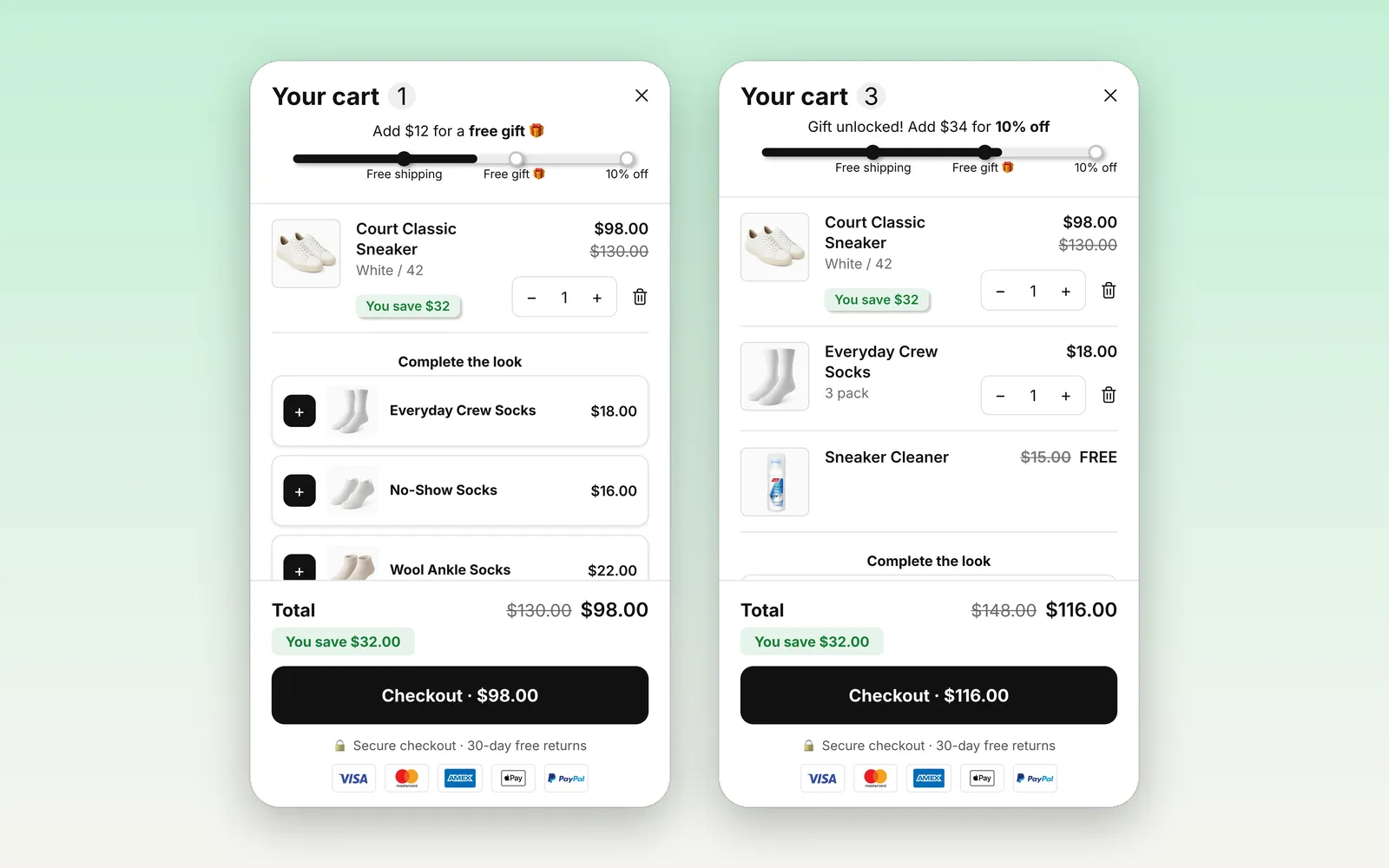
Left: “Add $12 for a free gift”. Right: the gift unlocked, the free cleaner added, and the next goal shown.
The free-shipping trap
A Milestone only tier draws the circle and the message and creates no discount. That is what a “Free shipping at $75” tier is. The free shipping itself comes from Shopify:
- In Shopify admin, go to Discounts > Create discount > Free shipping.
- Set the same minimum purchase amount as your tier.
- Under Combinations, allow it to combine with the other discount types.
Keep the two amounts in sync whenever you change one. This is the most common reason a merchant says “the bar says free shipping but checkout charges shipping”.
Step 3: add a free gift tier
Click Add tier, set the amount, choose Free product as the reward and pick the gift. Fill in Discount name at checkout (“Free gift”); left blank, checkout shows an odd fallback text.
When the cart reaches the tier, the gift is added automatically, shown as free in the cart and free at checkout. If the cart drops below the amount, the gift is removed. Gift lines don’t count toward the progress. Only the gift’s first variant is used, so make sure it is in stock.
Step 4: add upsells that belong in the cart
Add an Upsell products section. The settings that matter most:
- Products: Automatic, or Rules. A rule reads “when this is in the cart, suggest that”. Rules run top to bottom.
- Max products: four by default.
- Keep showing products already in the cart: off by default, so shoppers are never offered what they already have.
- Layout: a carousel, full-width rows or vertical cards.
- Add to cart control: a + button, or a toggle switch for add-ons like gift wrap or insurance.
To make the suggestion more tempting, turn on Discount on added products and set an offer such as 10% off when added from the cart. The card shows the discounted price with the regular price crossed out.
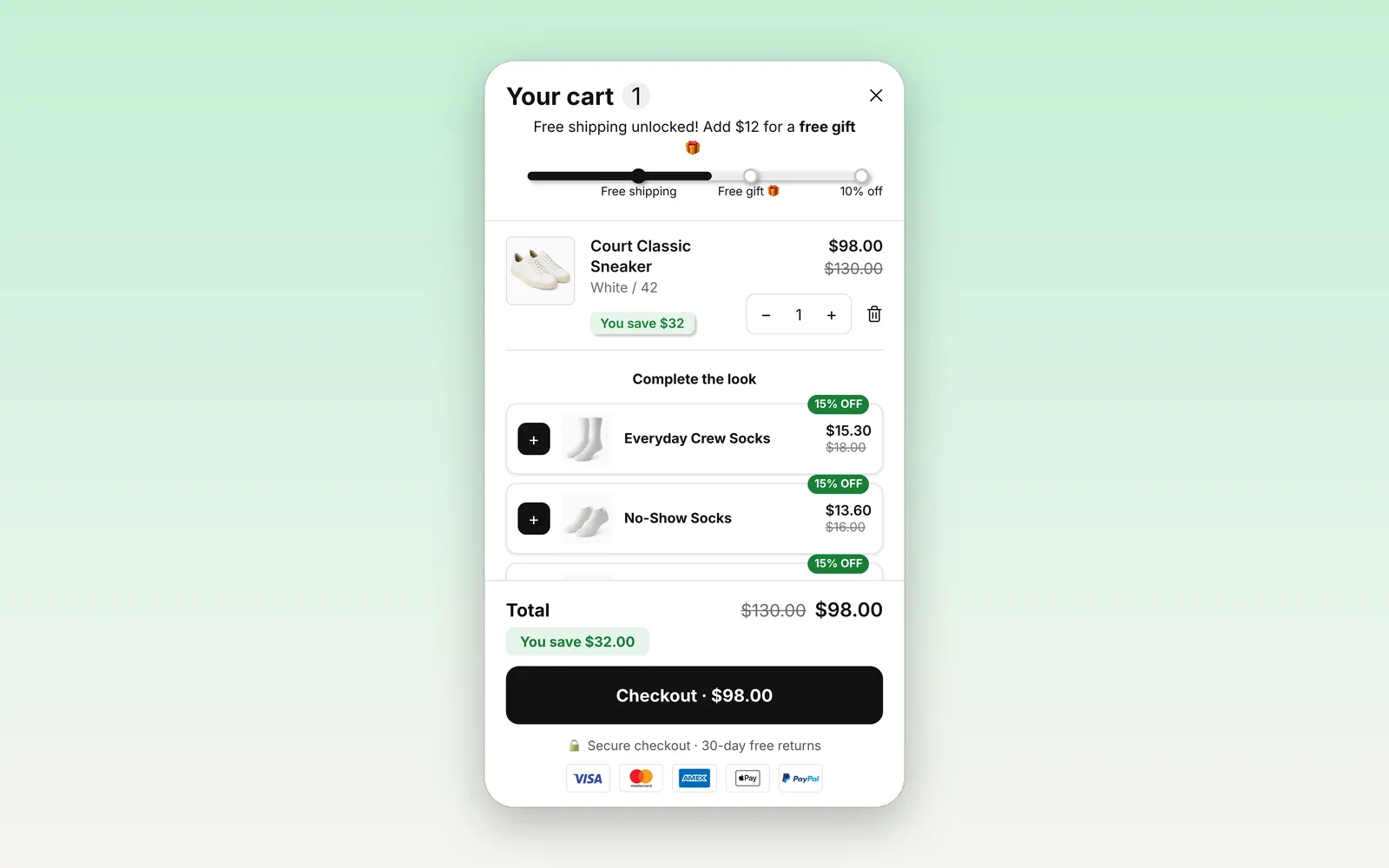
“Complete the look” with a discount for items added from the cart.
Step 5: trust badges and an announcement bar
A Trust badges section shows payment icons near the checkout button. An Announcement bar can carry a short message and a countdown; the countdown runs per visitor per session and the bar hides at 0:00. Use it for a real offer only.
Step 6: save and switch it on
This is the step people miss. Saving is not the same as going live:
- Press Save in the editor.
- Turn on the Cartify Cart V2 app embed in your published theme, then press Save in the theme editor.
There is no separate publish button. The app embed is the switch.
The faster way: describe the cart to the AI
Everything above can also be done by chat. Switch the editor to AI chat and type what you want, for example “Add a reward bar: free shipping at 75, a free gift at 150” or “Make the cart dark and premium: black background, white text, gold checkout button”. You can also paste a screenshot of a cart you like and ask the AI to match it. It looks up real products in your store for gifts and upsells, and the preview updates after every step.
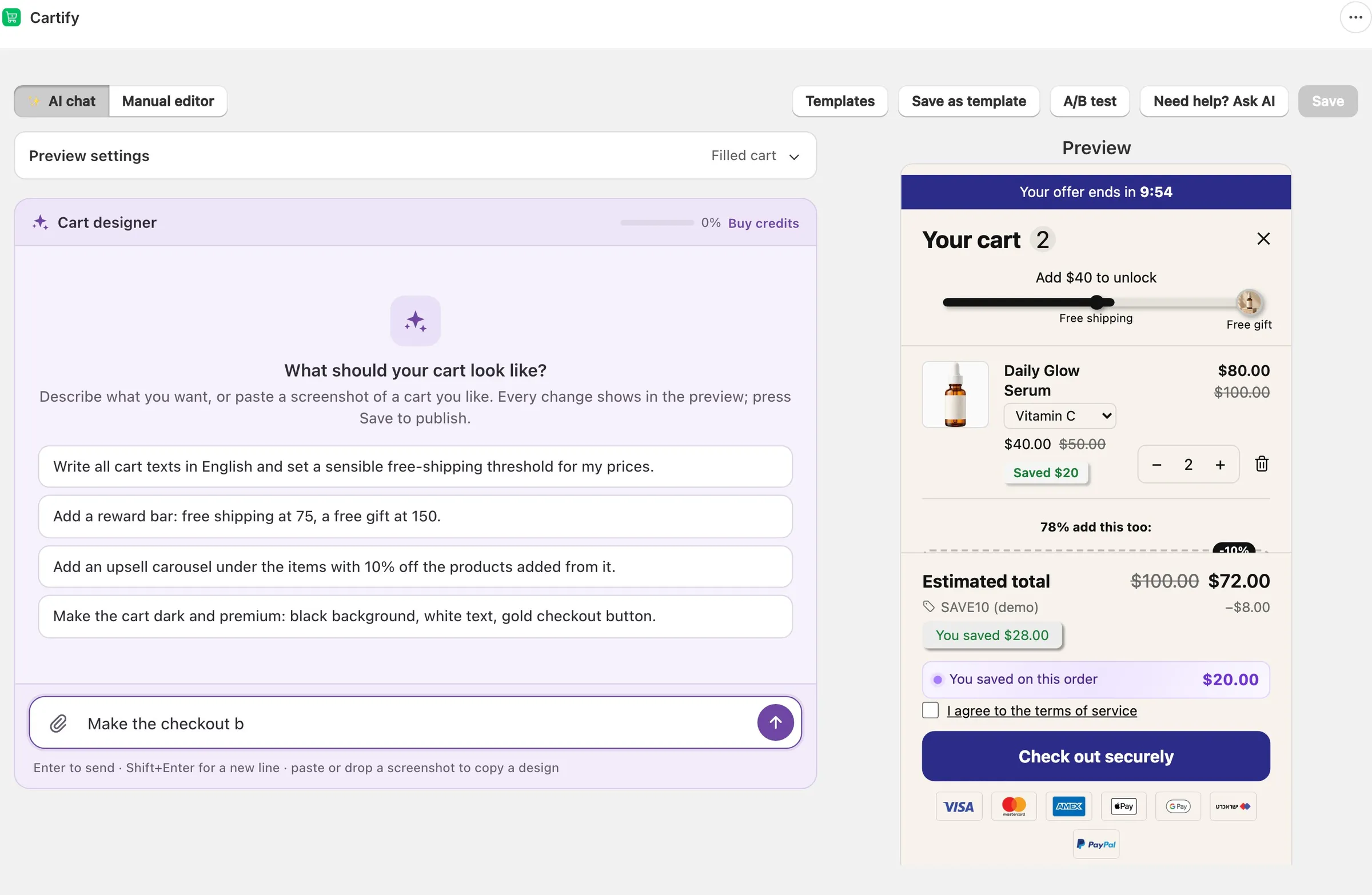
The Cart designer’s starting screen, with suggested requests.
Undo this change reverts the AI’s last turn, and nothing reaches the store until you press Save. Every store gets a free monthly AI allowance; credit packs are available when it runs out.
Test it with a real A/B test
Once the cart is live, you can check what works. Click A/B test, create cart B, choose the share of shoppers who see it and start the test. Cartify counts shoppers, orders, conversion and revenue for each cart.
Two rules keep the result honest. Order-discount tiers must be identical in both carts, because Shopify applies them store-wide. And under 200 shoppers and 20 orders per cart, Cartify won’t name a winner; a small gap can be noise, so let it run.
Mistakes that make totals disagree
- A tier left at 0. It unlocks for every cart.
- A free-shipping tier with no Shopify discount behind it.
- Editing the reward discounts Cartify creates in Shopify by hand. Every Save rebuilds them, so change the tier in Cartify instead.
- Expecting two order-discount tiers to stack. Only the best one applies, which is what the bar shows.
The cart shows an estimate without taxes and shipping. The checkout total is the truth, so place one test order before you call it done.
FAQ
- Does a free shipping bar give free shipping by itself?
- Not in Cartify. A free-shipping tier shows the progress and the message. The free shipping itself comes from a Shopify free-shipping discount with the same minimum, which you create in Shopify admin > Discounts.
- Do I need a drawer-type cart in my theme?
- No. Cartify's drawer replaces the theme's own cart drawer on any theme, and the theme's cart type does not need to be set to Drawer. The /cart page stays as your theme built it.
- Can a cart upsell be discounted?
- Yes. In an Upsell products section, turn on Offer a discount when added from the cart. The card shows the discounted price with the regular price crossed out.
- Why does the cart total differ from checkout?
- The cart shows an estimate without taxes and shipping, and only the single best order-discount tier applies. Check that every discount tier has a name, that no tier is set to 0, and that other discounts allow combining.
- How many upsell products should I show?
- Start with a few that clearly belong with what is in the cart. Cartify shows up to four by default, and products already in the cart drop out of the list.
Prefer video?


 BundleUp · 6 min
 Vouch · 5 min